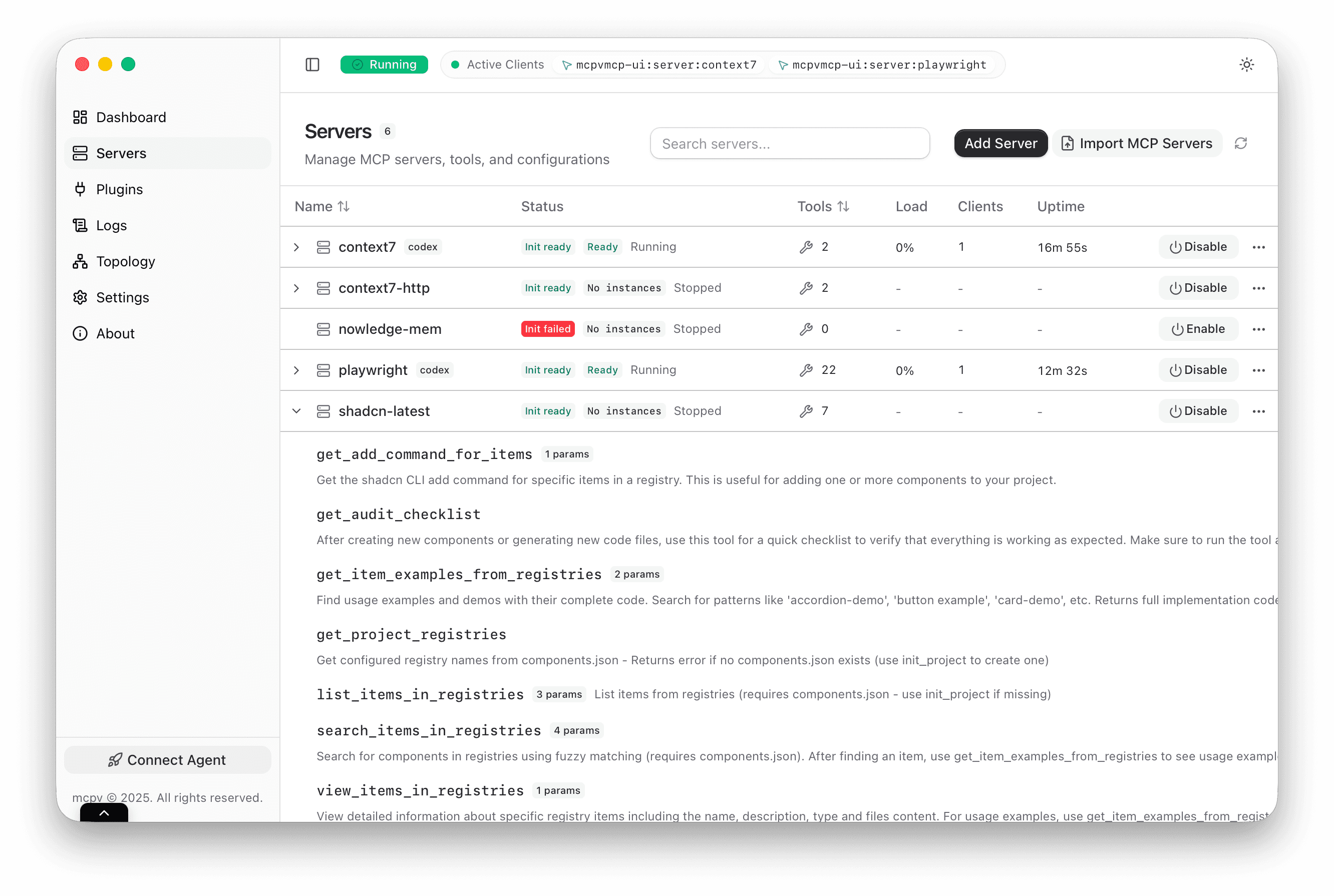
Manage servers
Add, edit, and organize MCP servers in one place.
The Servers page is where you spend most of your time. It keeps the essentials close: what is configured, what is active, and what each server exposes.
Server definition vs instance
A server definition is the configuration you manage in the UI: name, command, transport, tags, and lifecycle settings. An instance is the running process created from that definition. The UI shows both layers so you can reason about intent and reality at the same time.
This distinction matters. You can have a valid definition that is not currently running, and that is normal. MCPV starts instances when needed and keeps them warm based on your lifecycle settings.
Edit without fear
Open a server and adjust its settings in a focused panel. You can rename it, update the command, adjust lifecycle behavior, or refine tags. The UI guides you with small hints so you do not have to remember every detail.
Activation modes in practice
On-demand servers start when the first request arrives and shut down after they are idle. Always-on servers keep a minimum number of instances ready, which reduces latency at the cost of resources. Disabled servers stay in the catalog but will never start, which is useful for staging and experiments.
On-demand is the default
It offers the best balance for most teams: fast enough for real use, efficient enough for large catalogs.
Tools, resources, and prompts
MCPV UI shows what each server provides so you can confirm the right tools are available. Tool lists are refreshed as servers report changes, which keeps your view aligned with reality.
Runtime status in context
The detail view includes instances, uptime, and recent activity. It reads like a small status report, which makes it easier to answer the practical question: is this server healthy enough to trust right now?