Quickstart
Start MCPV UI and bring your first servers online.
This is the shortest path to a working setup. Keep the defaults, add your servers, and connect a client.
Launch MCPV UI. On the Dashboard, you should see the core status turn healthy. If it is not running yet, the UI will tell you and offer a quick start.
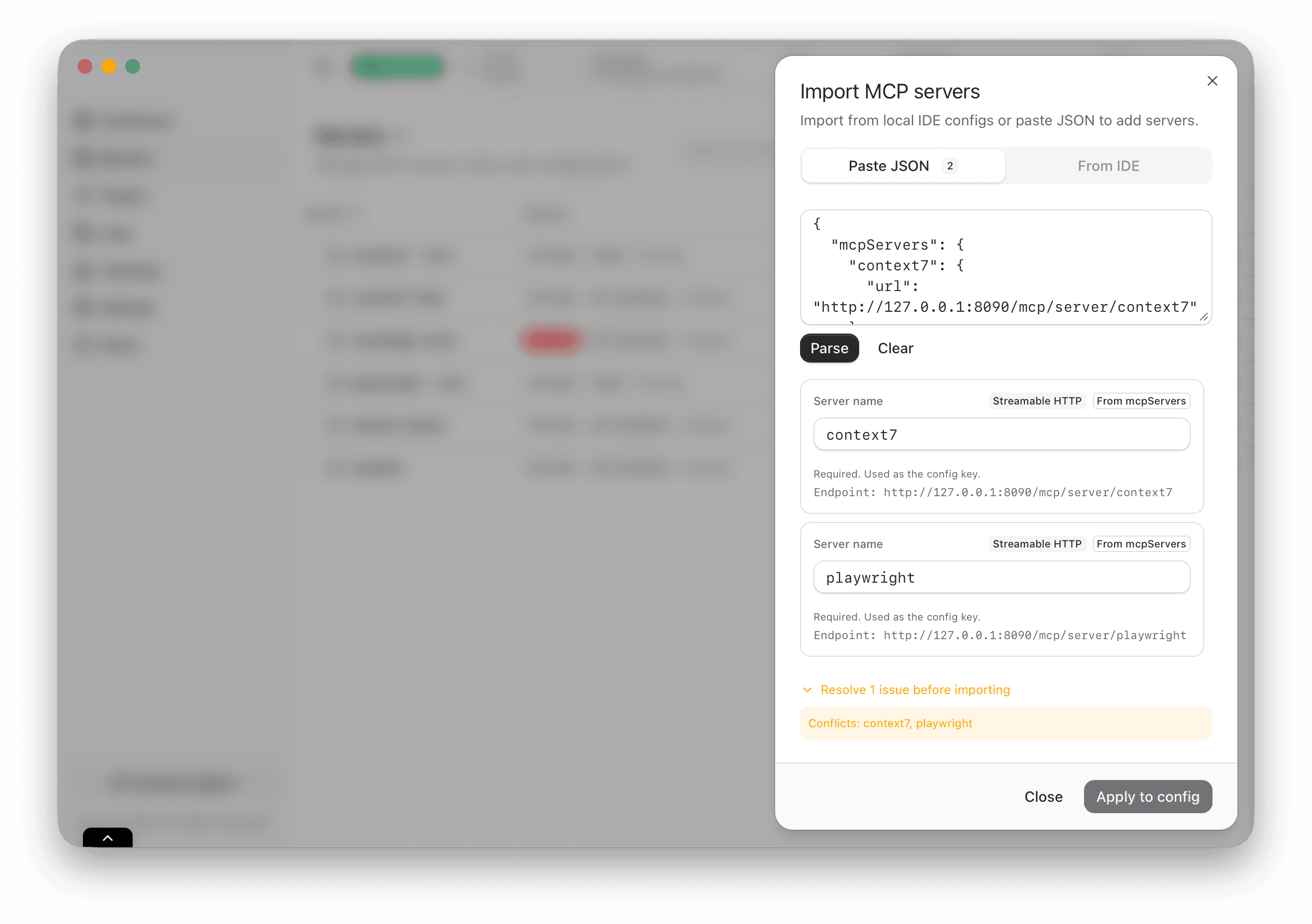
Add your first MCP servers. You can create them manually, or import from your IDE if you already have MCP server definitions there.
Open the Servers page and confirm each server shows a healthy or idle state. A server does not need to be busy to be ready.
Connect your MCP client to MCPV. Once a request comes in, MCPV will start the right server automatically and keep its tools in sync.
What is actually happening
When you add a server, MCPV registers its definition but does not necessarily start a process immediately. The core keeps the configuration and starts instances on demand. This keeps the system responsive without wasting resources.
When your client sends the first request, the gateway forwards it to the core. The core starts an instance, performs the initial handshake, and then routes the call. The UI reflects this flow by moving the server from idle to running, then back to idle when it has no active work.
What success looks like
You should see three signals in the UI: the core is healthy, the server appears in the list, and a request moves the server into a running state. If all three happen, your system is wired correctly and you can proceed to expand the catalog.
Have an existing configuration?
Use the import flow to pull MCP servers from your local IDE configuration or paste JSON directly. It saves time and avoids typos.