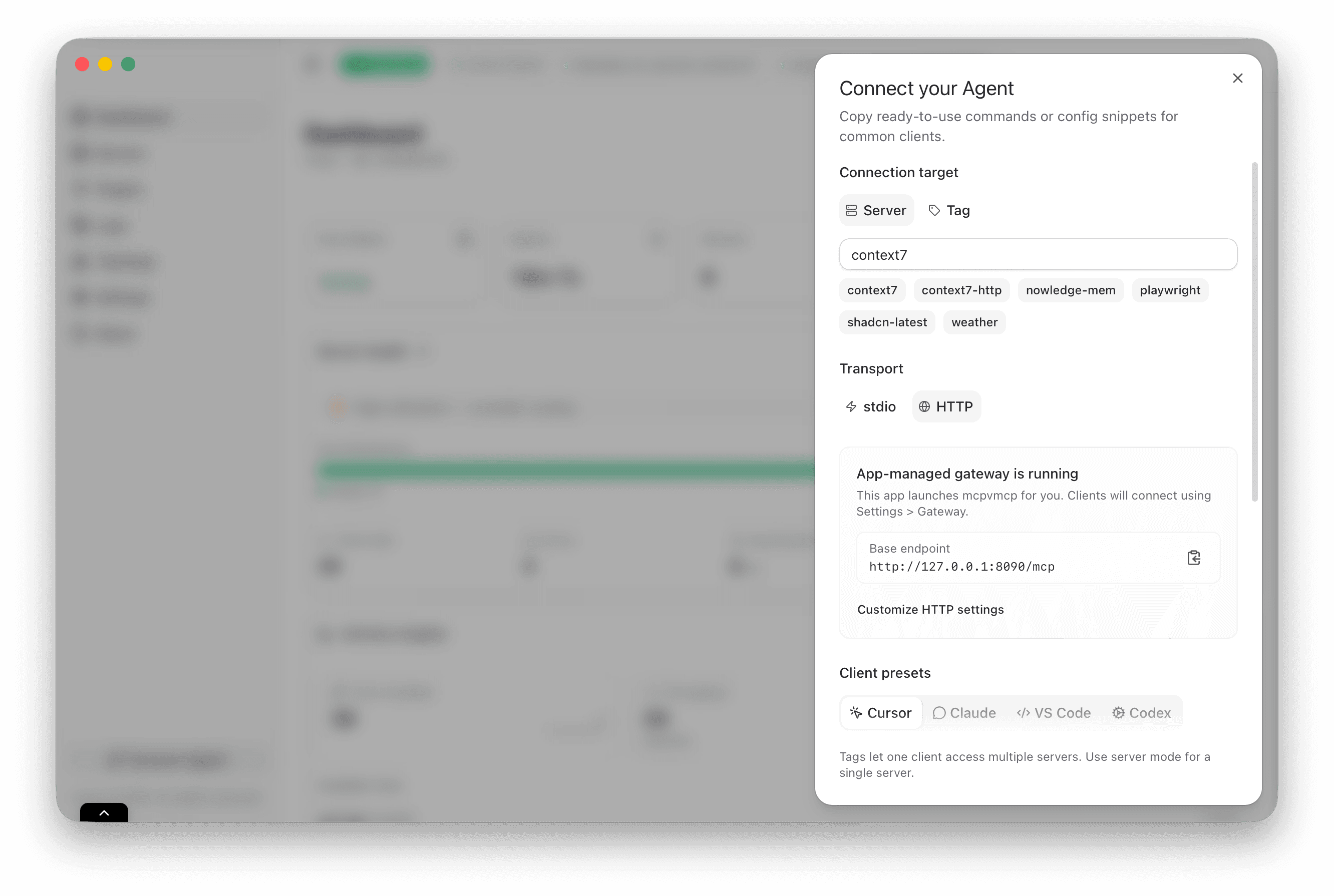
Connect a client
Point your MCP client to MCPV and start routing.
MCPV sits between your client and your servers. The UI makes the connection step explicit so you know exactly what address to use and what mode you are in.
Open the Connect dialog from the UI. It shows the current gateway address and whether you are in single-server mode or tag-based mode.
In your MCP client, add a new connection using the gateway address. Keep the name simple so it is easy to recognize later.
If you use tags, add the same tag in the client configuration. This is how MCPV decides which servers to expose.
Make a test call from the client. The server state in MCPV UI should move from idle to running and then settle back.
What the gateway actually does
The gateway is the only address your client needs. It acts like a single MCP server, but behind the scenes it forwards requests to the right backend server based on name or tag. This gives you a clean client configuration even when you have many servers.
What the client sees
In single-server mode, the client always sees one server and its tools. In tag mode, the gateway exposes a filtered tool list that matches the client tag. That keeps clients focused and prevents accidental cross-use.
Tag mode or single server?
Use a tag when you want one client to access a group of servers. Use single-server mode when you want a strict, one-to-one connection.